Running a business is challenging enough without spending hours managing invoices, taxes, bank transactions, and financial reports. Zoho Books simplifies accounting by automating everyday financial tasks while helping businesses stay compliant and organized.
Whether you’re a startup, freelancer, or growing enterprise, Zoho Books accounting software provides everything needed to manage finances from one secure cloud platform. If you’re switching from QuickBooks to Zoho Books, Tally, Xero, or another accounting platform, professional Zoho Books Migration Services can make the transition smooth while protecting your valuable financial data.
In this guide, you’ll learn how to master Zoho Books, explore its most valuable features, understand its benefits, and discover practical tips for getting the most from this powerful accounting solution.
Why Businesses Choose Zoho Books
Modern businesses need more than bookkeeping software. They need a platform that automates repetitive work, improves accuracy, and provides real-time financial visibility.
That’s exactly what Zoho Books delivers.
It combines accounting, invoicing, inventory, banking, GST compliance, reporting, and workflow automation into one cloud-based solution. You can explore the complete feature set on the Zoho Books official product page. Businesses can access their financial data anytime, from anywhere, while collaborating securely with accountants and finance teams.
For businesses seeking simple business accounting software, Zoho Books strikes an excellent balance between ease of use and advanced functionality.
What Makes Zoho Books Different?
Unlike traditional desktop accounting software, Zoho Books is cloud-based.
This means you can:
- Access accounts from anywhere
- Collaborate with multiple users
- Automate repetitive accounting tasks
- Connect with banks
- Generate reports instantly
- Integrate with other Zoho applications
Instead of manually updating spreadsheets every day, businesses can focus on growth while Zoho Books handles routine accounting processes.
Key Zoho Accounting Software Features
The biggest strength lies in its automation capabilities, allowing businesses to streamline invoicing, approvals, recurring transactions, and financial workflows.
Feature | Business Benefit |
Smart Invoicing | Create professional invoices and automate recurring billing |
Expense Tracking | Record expenses with digital receipts |
Bank Reconciliation | Match bank transactions automatically |
GST Compliance | Manage GST, HSN/SAC codes, e-Invoicing, and tax reports |
Inventory Management | Track stock levels in real time |
Financial Reports | Generate Profit & Loss, Balance Sheet, Cash Flow, and more |
Workflow Automation | Send reminders, approvals, and recurring transactions automatically |
Mobile Access | Manage business accounting from anywhere |
Zoho Books also supports AI-powered accounting capabilities in newer editions, helping users analyze financial trends, identify anomalies, and improve decision-making.
How Zoho Books Improves Daily Accounting
Managing business finances becomes much easier when repetitive tasks are automated.
Invoice Automation
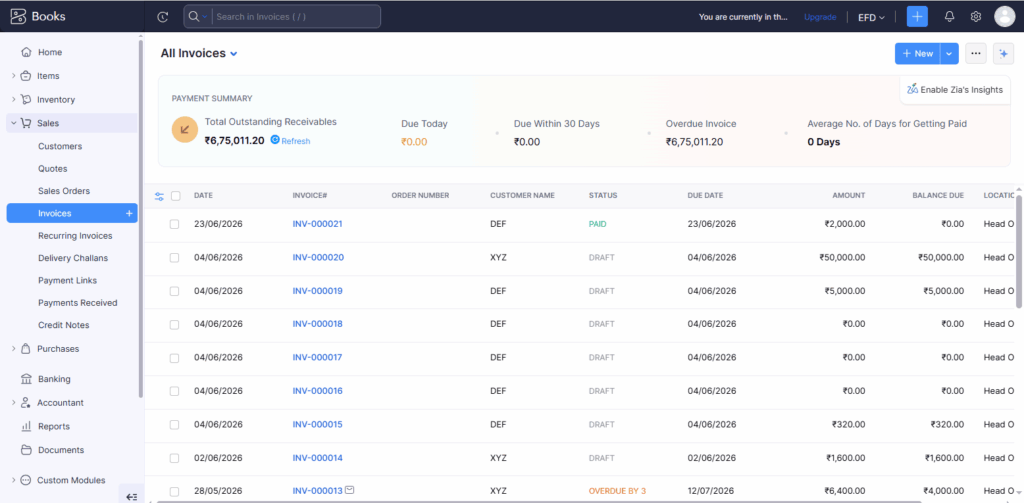
Instead of manually preparing invoices every month, businesses can schedule recurring invoices that are automatically sent to customers.
Automatic Payment Reminders
Late payments affect cash flow.
Zoho Books automatically sends reminders before and after due dates, helping businesses collect payments faster.
Bank Feed Integration
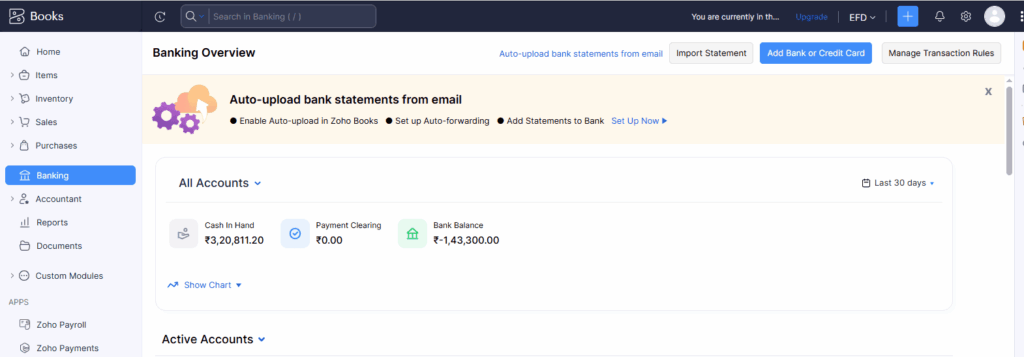
Transactions from supported banks are imported automatically, reducing manual data entry and speeding up reconciliation. Zoho also provides detailed guidance on automatic bank feeds and bank reconciliation to help businesses streamline their banking workflows.
Smart Reporting
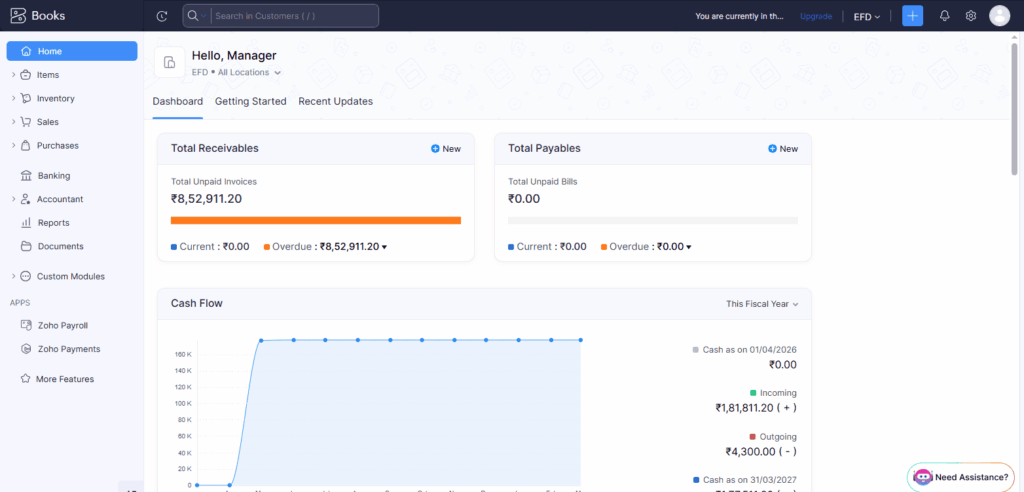
Real-time dashboards allow business owners to monitor:
- Sales
- Expenses
- Outstanding invoices
- Profit margins
- Cash flow
- Tax liabilities
This makes decision-making faster and more accurate.
GST Compliance Made Easy
For Indian businesses, GST compliance is essential.
Zoho Books includes built-in GST functionality that helps businesses:
- Generate GST-compliant invoices
- Calculate CGST, SGST, and IGST automatically
- Apply HSN/SAC codes
- Generate e-Way Bills
- Prepare GST return-ready reports
- Support e-Invoicing where applicable
Businesses subject to India’s e-invoicing requirements can generate IRN-validated e-invoices directly through Zoho Books after completing the required GST portal setup.
This significantly reduces manual compliance work and minimizes errors.
Why Businesses Are Migrating to Zoho Books
Many businesses still rely on legacy accounting software or spreadsheets.
However, cloud accounting offers several advantages:
- Better collaboration
- Real-time reporting
- Automatic backups
- Secure cloud storage
- Mobile accessibility
- Easier compliance
- Lower maintenance costs
Businesses moving from QuickBooks, Tally, Xero, Sage, or other accounting platforms often report that planning and cleaning data before migration leads to a smoother implementation.
Why Professional Zoho Books Migration Services Matter
Migrating accounting software isn’t just about importing data.
Businesses need to preserve:
- Customers
- Vendors
- Chart of Accounts
- Opening balances
- Outstanding invoices
- Bank reconciliation
- Inventory
- Historical transactions
- Tax information
Before beginning the migration, following a Zoho Books data migration checklist helps ensure your customers, vendors, opening balances, inventory, and historical transactions are transferred accurately.
At ZBooks Migration, our migration specialists carefully analyze your existing accounting system, clean financial data, migrate records accurately, validate balances, and ensure your Zoho Books account is ready for day-to-day operations with minimal disruption.
Whether you’re moving from QuickBooks, Tally, Xero, Sage, FreshBooks, or another accounting solution, expert migration reduces risk and saves valuable time.
Best Practices for Mastering Zoho Books
Getting started is easy, but using Zoho Books effectively requires good accounting habits.
1. Configure Your Organization Properly
Set up:
- GST details
- Financial year
- Currency
- Tax preferences
- User permissions
A proper setup prevents reporting issues later.
2. Automate Routine Tasks
Enable automation for:
- Invoice reminders
- Recurring bills
- Payment confirmations
- Workflow approvals
This reduces manual work significantly.
3. Connect Bank Accounts
Automatic bank feeds eliminate repetitive transaction entry and improve reconciliation accuracy.
4. Review Financial Reports Regularly
Monitor:
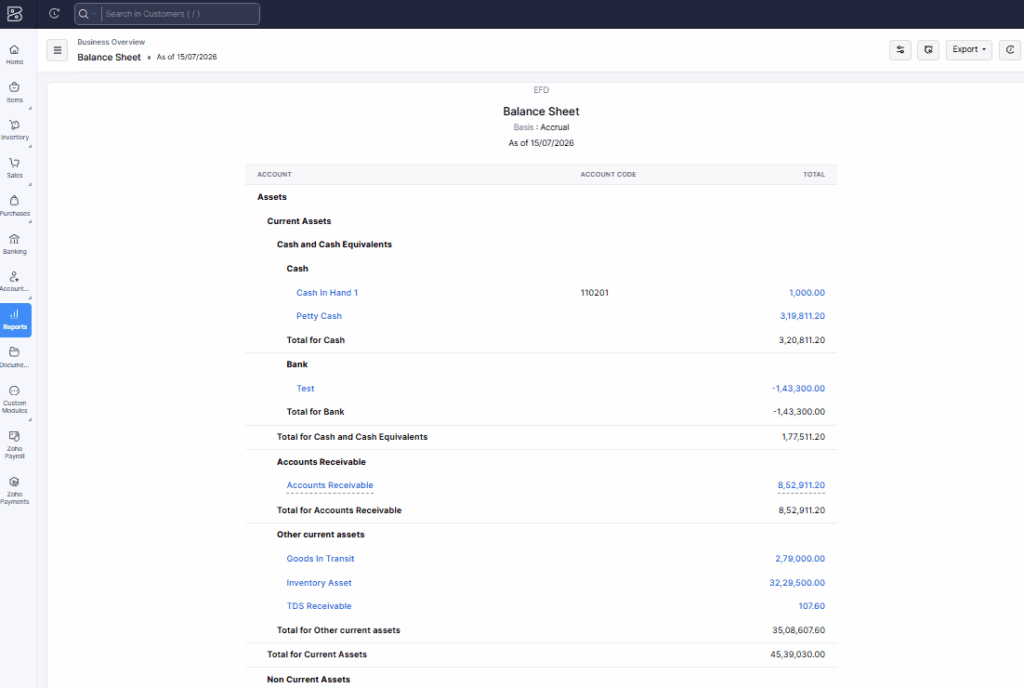
- Profit & Loss
- Cash Flow
- Outstanding Receivables
- Expense Trends
These reports help identify financial issues early.
5. Integrate with Other Business Applications
Zoho Books integrates seamlessly with several Zoho applications, helping businesses streamline CRM, inventory, projects, payroll, and workflow automation.
Who Should Use Zoho Books?
Zoho Books is ideal for:
- Small businesses
- Startups
- Freelancers
- Consultants
- Service providers
- Ecommerce businesses
- Manufacturers
- Retail businesses
- Professional firms
Its scalable architecture makes it suitable for organizations that expect future growth.
Common Mistakes to Avoid
Many businesses fail to maximize Zoho Books because they:
- Skip proper initial setup
- Ignore workflow automation
- Delay bank reconciliation
- Don’t review reports regularly
- Import poor-quality data during migration
- Give all users unrestricted access
Avoiding these mistakes leads to cleaner accounting and better financial visibility.
Frequently Asked Questions (FAQs)
Yes. You can learn Zoho Books for free through Zoho’s official Help Center, video tutorials, webinars, knowledge base, and product documentation. These resources cover everything from basic setup to advanced accounting features. You can also explore the software using a free trial to gain hands-on experience.
It depends on your business needs. Zoho Books is a cloud-based accounting solution that offers automation, real-time collaboration, online access, bank integration, and seamless integration with the Zoho ecosystem. Tally is a powerful desktop accounting software widely used for traditional bookkeeping and inventory management. Businesses looking for flexibility, automation, and remote access often prefer Zoho Books.
Yes. Zoho Books has a clean, user-friendly interface designed for business owners, accountants, and beginners. Most users can learn the basics—such as creating invoices, recording expenses, managing customers, and generating reports—in a short time. With regular practice and online tutorials, mastering advanced features becomes much easier.
You can learn Zoho Books from several trusted sources, including:
Zoho Books Help Center and official documentation
Zoho Learn and Zoho Academy training resources
Zoho webinars and YouTube tutorials
Certified Zoho Partners offering training and implementation
Hands-on practice using a Zoho Books trial account
Yes. Zoho Books is ideal for startups, freelancers, and small to medium-sized businesses. It simplifies invoicing, expense tracking, GST compliance, bank reconciliation, inventory management, and financial reporting, making daily accounting easier and more efficient.
Yes. You can migrate data from accounting software such as QuickBooks, Tally, Xero, Sage, and other platforms. Using professional Zoho Books Migration Services helps ensure your customers, vendors, transactions, opening balances, and financial records are transferred accurately with minimal business disruption.
Conclusion
Modern accounting should save time—not create more work. Zoho Books delivers a powerful combination of automation, compliance, collaboration, and real-time financial insights that helps businesses manage accounting more efficiently.
Whether you’re looking for simple business accounting software, exploring advanced Zoho accounting software features, or planning to switch from another accounting platform, Zoho Books offers a scalable solution for businesses of all sizes.
If you’re ready to migrate, ZBooks Migration provides reliable Zoho Books Migration Services that ensure your financial data is transferred securely and accurately. From data preparation to validation and post-migration support, our experts help you transition with confidence so you can focus on growing your business instead of worrying about your accounting system.